Windows 11 System Requirements: Can Your PC Run It? (2026)

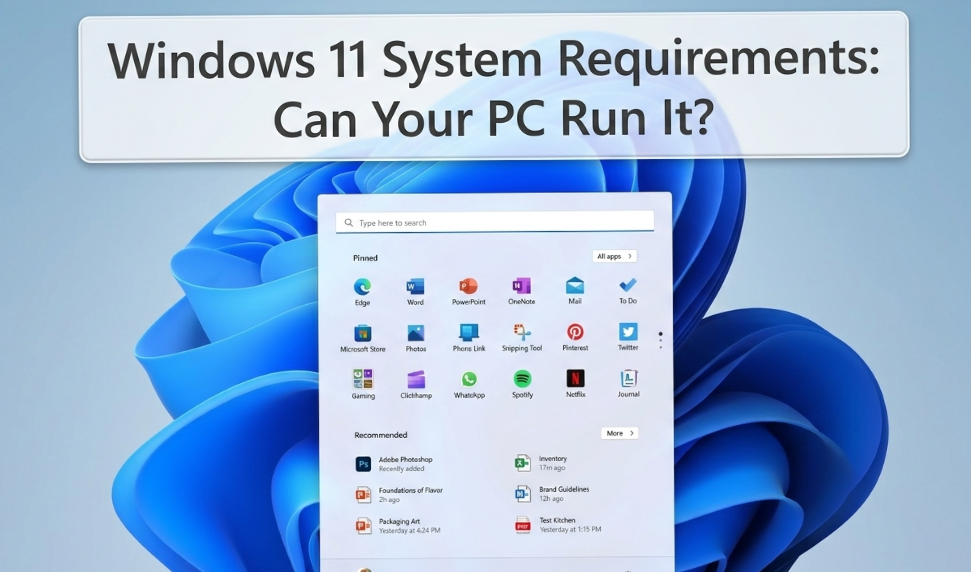
Windows 11 System Requirements (2026): Can Your PC Run It?
Checking Windows 11 system requirements sounds easy—until your PC fails the test. This guide shows the official checklist, how to check compatibility in minutes, and how to fix the most common blockers (TPM 2.0 + Secure Boot).
- Instant digital delivery
- Activation support included
- Secure checkout
If you’re here, you’re probably asking one simple question: can my PC run Windows 11? The answer depends on a few core Windows 11 system requirements—and two of them (TPM 2.0 and Secure Boot) are the reason many PCs fail the upgrade check.
Here’s the good news: a lot of “not compatible” results are fixable. In many cases, your PC already has TPM 2.0 and Secure Boot support—it’s just turned off in the BIOS/UEFI settings. This guide walks you through checking eligibility the fast way, understanding what each requirement means, and choosing the best next step if your device can’t upgrade.
By the end, you’ll know exactly where you stand and what to do next—upgrade to Windows 11, improve your hardware, or use a safe alternative plan for 2026.
Windows 11 System Requirements (2026): Official Checklist
Let’s start with the official minimum Windows 11 system requirements. Think of these as the “must-have” items to install and run Windows 11. Real-world comfort (smooth multitasking) usually needs a bit more than the minimum.
| Requirement | Minimum | Why it matters | Quick check |
|---|---|---|---|
| CPU | 1 GHz+ with 2+ cores (64-bit, compatible) | Determines upgrade eligibility and performance | Task Manager → Performance → CPU |
| RAM | 4 GB | More RAM = smoother browsing + Office + multitasking | Settings → System → About |
| Storage | 64 GB+ | Updates need space; low storage causes slowdowns | Settings → System → Storage |
| Firmware | UEFI + Secure Boot capable | Boot protection blocks low-level malware | System Information → “BIOS Mode” |
| TPM | TPM 2.0 | Hardware security foundation for modern protections | tpm.msc |
| Graphics | DirectX 12 / WDDM 2.0 | Ensures modern driver model + UI features | dxdiag → Display |
| Display | 720p, 9”+, 8-bit color | Baseline UI readability and graphics support | Settings → System → Display |
Want the official sources? Here are Microsoft pages you can open in a new tab: Windows 11 system requirements (Microsoft) and Windows 11 specifications (Microsoft).
How to Check if Your PC Can Run Windows 11 (3 Easy Ways)
You don’t need to guess. Here are three reliable ways to check Windows 11 system requirements and compatibility—starting with the fastest.
Method 1: PC Health Check (fastest)
Microsoft’s PC Health Check app is designed specifically to report Windows 11 upgrade eligibility. It’s the quickest way to see “eligible / not eligible” and identify the reason. How to use PC Health Check (Microsoft)
- Install/open PC Health Check.
- Click Check now for Windows 11 eligibility.
- Note which requirement fails (TPM, Secure Boot, CPU, etc.).
Method 2: Settings → Windows Update
On many devices, Windows Update will show if your device is eligible. Go to Settings → Windows Update and look for the Windows 11 upgrade option. If the message feels confusing, use PC Health Check to confirm.
Method 3: Manual check (System Information + TPM tool)
- TPM: Press Win+R → type tpm.msc → check “Specification Version: 2.0”.
- Secure Boot/UEFI: Search “System Information” → confirm BIOS Mode: UEFI.
- DirectX: Press Win+R → type dxdiag → confirm DirectX 12 support.
If your PC passes the check, you can activate Windows 11 in minutes with a genuine key.
Common Windows 11 Compatibility Blockers (and What They Mean)
Most failures happen for a small set of reasons. Here are the blockers you’ll see most often when checking Windows 11 system requirements.
1) TPM 2.0 is missing (or disabled)
TPM is a security chip (or firmware module) that helps protect encryption keys and boot integrity. Many PCs have it—but it’s disabled in BIOS/UEFI.
- If PC Health Check says TPM isn’t available, don’t panic yet.
- First confirm: tpm.msc → “Specification Version”.
- Then check BIOS settings for Intel PTT (Intel) or fTPM (AMD).
2) Secure Boot is off
Secure Boot helps ensure only trusted software loads at startup. Windows 11 often requires Secure Boot to be enabled and UEFI mode (not Legacy/CSM).
- If “BIOS Mode” shows Legacy, Windows 11 eligibility may fail.
- Switching to UEFI can require changing disk partition style (MBR → GPT).
3) CPU not on the supported list
CPU compatibility is a big one for older devices. Even if your CPU is “fast enough,” it may not be on Microsoft’s supported list for Windows 11 upgrades.
4) Storage too low for updates
Windows updates need working space. Even if you meet the 64GB minimum, low free space can create update failures. If you’re close to the limit, plan on freeing space or upgrading storage (SSD).
How to Fix “This PC Can’t Run Windows 11” (Step-by-Step)
If your check fails, work through this in order. You’ll solve most “not compatible” results by enabling settings—not by buying a new PC.
Fix 1: Enable TPM 2.0 (Intel PTT / AMD fTPM)
- Restart your PC and enter BIOS/UEFI (often Del, F2, F10, or Esc).
- Find Security or Advanced settings.
- Enable Intel PTT (Intel) or AMD fTPM (AMD).
- Save changes and reboot.
- Run tpm.msc again to confirm TPM 2.0 is active.
Fix 2: Enable Secure Boot (and UEFI mode)
- Enter BIOS/UEFI again.
- Switch boot mode to UEFI (disable Legacy/CSM if needed).
- Enable Secure Boot.
- Save and reboot.
- Check System Information: BIOS Mode should show UEFI.
Fix 3: Improve storage and performance (quick wins)
- Free 20–30GB of space before upgrading.
- Upgrade to an SSD if you’re still on a hard drive (big speed boost).
- If you have 4GB RAM, consider 8GB for smoother 2026 use.
Choose your edition and activate Windows 11 quickly.
If Your PC Can’t Run Windows 11 (Best Options in 2026)
If your device truly can’t meet Windows 11 system requirements, you still have good options. The right choice depends on how you use your PC (work, school, gaming, business, browsing).
Option A: Upgrade hardware (only if it’s worth it)
- Best upgrades: SSD + RAM (biggest real-world improvement).
- TPM/Secure Boot issues: often fixable in BIOS—no hardware needed.
- CPU unsupported: usually means the device is older—consider a newer PC.
Option B: Keep Windows 10 short-term (understand the risk)
If Windows 11 isn’t possible, some users keep Windows 10 temporarily. For online use, plan strong security habits and consider Microsoft’s ESU route if available for your setup.
Option C: Avoid unsupported installs (not recommended)
People sometimes try bypass methods. The problem is the long-term experience: warnings, missing updates, and unpredictable stability. For business or important personal data, it’s not worth the headache.
Which Windows 11 Edition Should You Buy? (Home vs Pro)
Once your PC meets Windows 11 system requirements, the next question is simple: do you need Home or Pro?
Choose Windows 11 Home if you want the best value
- Personal PCs, students, families
- Gaming and everyday use
- Streaming, browsing, Office work
Choose Windows 11 Pro if you need security + business features
- BitLocker encryption (great for laptops)
- Remote Desktop hosting
- Group Policy / business management tools
- Workplace / IT environments
FAQ: Windows 11 System Requirements (2026)
What are the minimum system requirements for Windows 11?
Windows 11 requires a compatible 64-bit CPU (1GHz, 2+ cores), 4GB RAM, 64GB storage, UEFI with Secure Boot, TPM 2.0, and DirectX 12/WDDM 2.0 graphics.
How do I check if my PC is compatible with Windows 11?
Use Microsoft’s PC Health Check app for the fastest result. You can also check Windows Update eligibility, plus verify TPM (tpm.msc) and UEFI/Secure Boot in System Information.
Do I really need TPM 2.0 for Windows 11?
For official support, yes. TPM 2.0 is a core security requirement. Many PCs have it but it may be disabled in BIOS/UEFI (Intel PTT or AMD fTPM).
Can I install Windows 11 on unsupported hardware?
It may be possible, but it’s not recommended. Unsupported installs can lead to warnings, update issues, and a less reliable long-term experience.
Why does Windows 11 require Secure Boot?
Secure Boot helps prevent untrusted software from loading during startup. It’s part of Windows 11’s security baseline and often must be enabled to pass upgrade eligibility.
Conclusion: Check Windows 11 System Requirements Once—Then Upgrade Confidently
The best way to avoid upgrade stress is to check Windows 11 system requirements the right way: run PC Health Check, confirm TPM 2.0 + Secure Boot, and make sure you have enough storage for updates.
If your device is compatible, upgrading is usually a smart move for security and long-term support. If it isn’t, you still have options—hardware upgrades, a planned replacement, or a short-term solution while you prepare.
When you’re ready, choose your edition and activate Windows 11 in minutes.